
The painting stays with the work
Reading colors is only the starting point. A large painted model may need mesh repairs, fewer triangles or separate details before it can be cut into printable parts.
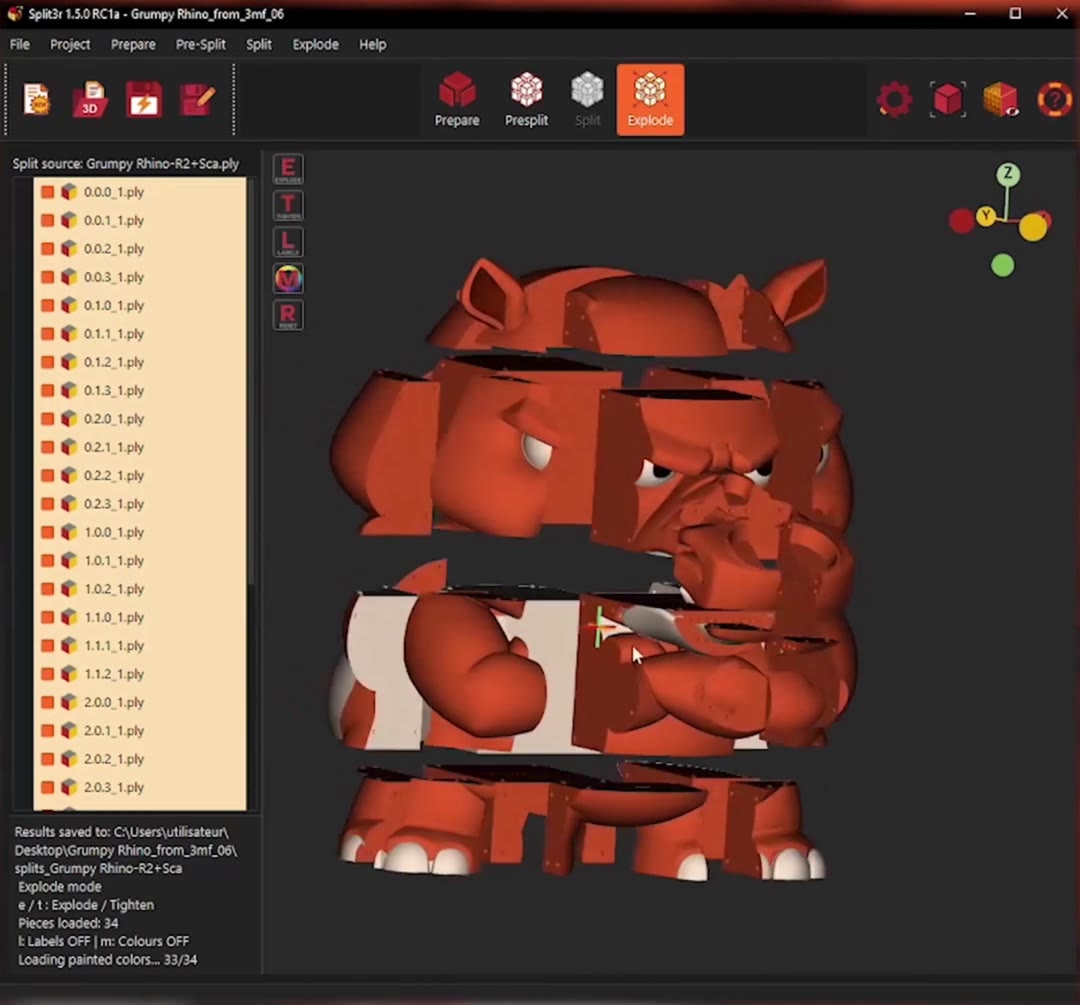
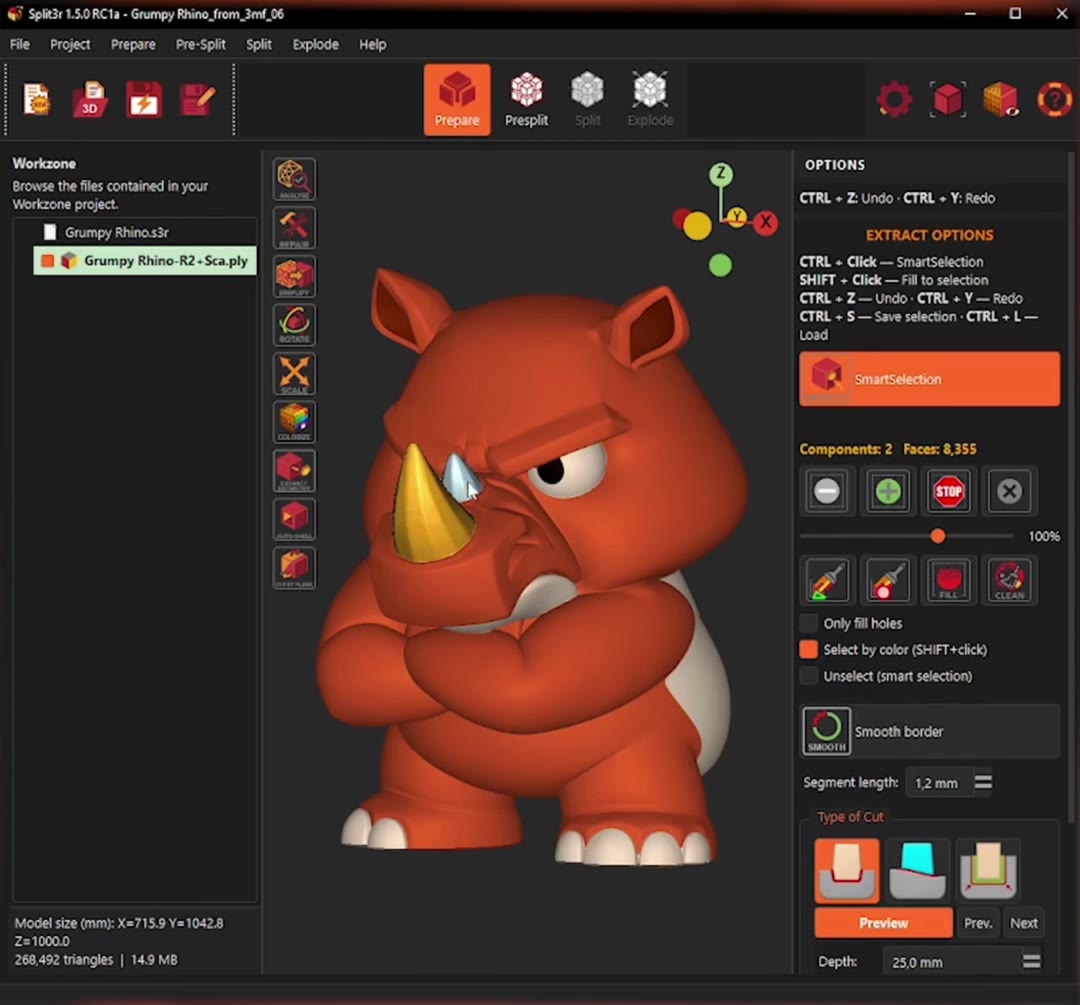
Split3r carries the painting through that preparation. In this real rhino project, a 75 mm model becomes a 1,000 mm build. The horns are extracted separately and the body is split into 34 pieces, with the red and white painting still on the surfaces.
From painted model to printable parts
- Prepare. Open the painted 3MF. Analyze and Repair the mesh, then Simplify it if needed.
- Select and Extract. Refine a region with Smart Selection, preview its closure and extract the part.
- Pre-Split and Split. Set the printer volume, plan the cuts and generate printable pieces.
- Inspect and Export. Check the painted result in Explode and export the final colored 3MF.
Want to split 3MF by color?
Use color-based selection where appropriate, refine the boundary with Smart Selection and preview the closure before running Extract.
On the rhino, the horns are selected and extracted so they can be prepared separately from the body. The existing painting follows the extracted geometry.
A painted region still needs a suitable printable volume. Selecting a color is the start of that preparation; check the shape and the joint before extracting.
Preserve 3MF colors through the whole workflow
Use the preparation steps your model needs, in the same Workzone. Simplify is optional; the painting is carried forward when you use it.
From the painted input to the final colored 3MF
| Stage | What happens to the model and its painting |
|---|---|
| Painted 3MF | Import the model together with its existing painted regions. |
| Analyze / Repair | Inspect the geometry and repair mesh defects while retaining the painting. |
| Simplify | Reduce triangle count when needed. The painting transfers onto the reduced mesh. |
| Smart Selection / Extract | Refine the selected region, preview the closure and separate the detail with its painting. |
| Pre-Split / Split | Plan printer-sized cuts and generate the parts and matching joints. |
| Inspect the painting | Use the painted view in Explode to check the original appearance across the separated pieces. |
| Final colored 3MF | Run Export WorkZone to colored 3MF, then inspect the exported painting and filament assignments in your slicer. |
The complete painted workflow requires Split3r Full or Basic + Add-ons. Compare licenses.
Watch the real rhino workflow
The recording follows Repair, scaling from 75 mm to 1,000 mm, Smart Selection, extraction of the horns and splitting of the body into 34 pieces.
After the split, Explode shows the pieces with their original red and white painting. Temporary identification colors help distinguish the parts; they are a separate display mode.
This recording shows repair, extraction, splitting and painted inspection. Simplify and reopening the final export in a slicer are additional workflow steps described on this page.
Real Split3r demonstration, 1 min 35 s
Repair, scale, extract, split, then inspect the painted result. English narration and on-screen captions.
Bambu painted 3MF and Orca painted 3MF
Bring a painted file from Bambu Studio or OrcaSlicer into Split3r, prepare its geometry and return the colored parts to your slicer. Painted 3MF support also includes PrusaSlicer.
Bambu painted 3MF
Repair the imported mesh, simplify it when needed, extract details and split the model while keeping its painting.
Orca painted 3MF
Use the same preparation workflow with OrcaSlicer files, then inspect the exported colored 3MF parts in your slicer.
Finish with a colored 3MF
Use Export WorkZone to colored 3MF to take the prepared pieces and their painting into your slicer.
1. Open the exported 3MF files.
2. Inspect the painted regions and check the filament assignments.
3. Choose orientation, supports and print settings, then slice.
Keep the complete Workzone if you want to return to the preparation project.
Painted 3MF questions
Can I use Split3r as a painted 3MF splitter?
Yes. Split3r prepares and splits painted models while carrying their painting through the workflow. Choose Split3r Full, or Basic with the Add-ons, for the complete painted 3MF workflow.
Can I split 3MF by color?
Use color-based selection where appropriate, refine the boundary with Smart Selection tools, then preview and Extract the region as a separate part. The rhino's horns show this kind of controlled separation. A painted region still needs a suitable closed shape for printing; a color alone does not define a ready-to-print solid.
Does Split3r preserve 3MF colors after Repair and Simplify?
Repair retains the painting while the geometry is repaired. Simplify transfers the painting onto the reduced mesh. Inspect the result after preparation, particularly where small details or damaged geometry need attention.
Does it support Bambu painted 3MF and Orca painted 3MF?
Split3r documents support for painted 3MF files from Bambu Studio, OrcaSlicer and PrusaSlicer. Import the painted model, prepare the parts, then export colored 3MF files for your slicer. Check the result and filament assignments before printing.
Why do the pieces sometimes appear in different colors?
Explode can show temporary part-identification colors to make the assembly easier to read. Those display colors are separate from the model's painting. Switch to the painted view to inspect the original appearance across the cut pieces.
How do I keep the colors in the final file?
Use Export WorkZone to colored 3MF. Open the exported 3MF files in your slicer, inspect their painted regions and filament assignments, then prepare the orientation, supports and print settings. Keep the complete Workzone if you want to return to the preparation project.
Why use Split3r if another tool can already read 3MF colors?
Reading paint is one step. Split3r combines mesh analysis, repair, simplification, selection, extraction, planned cuts and colored 3MF export in the same preparation workflow. That is useful when the model needs geometry work as well as cutting.
Take your painted model further
Prepare it, extract the details and split it into printable pieces, with the painting carried into the final colored 3MF.
Explore Split3r Full · Watch more demonstrations · Explore all features